NETWORK INFO APP

Know Your Network Status Anytime

Smart Transfer’s Network Information feature gives you a clear view of your network status in one place. Check Wi-Fi details, view connection information, test network speed, and monitor data usage through a simple dashboard. It also provides helpful recommendations to improve your connection security and network performance.


⭐ ⭐ ⭐ ⭐ ⭐

Trusted by millions of users worldwide
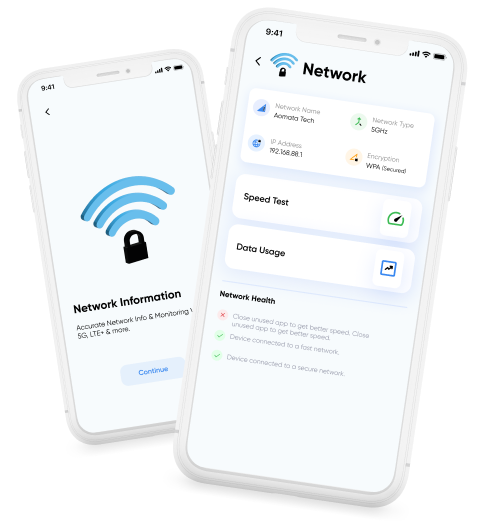
Network Information hero image showing Smart Transfer network status, speed test, and connection details.

Understand Your Network at a Glance

Smart Transfer App’s Network Information feature helps you better understand how your network behaves throughout the day. Along with connection details and performance indicators, it provides practical recommendations that help improve speed, stability, and overall connectivity.

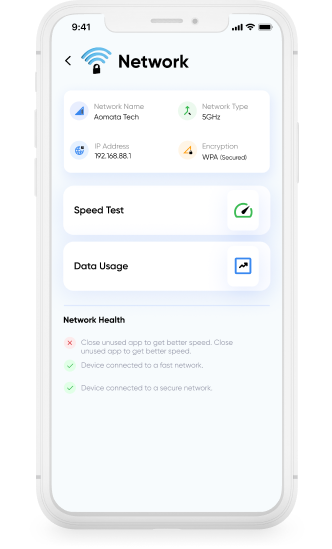
Network Information screen displaying network type, connection status, and IP details.

View Your Network Details

Check essential connection information such as network type, connection status, IP details, and other key indicators that show how your device is currently connected.

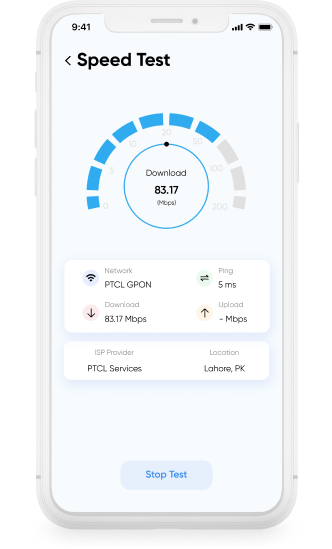
Network Information speed test screen measuring download and upload speed.

Test Network Speed

Run a quick speed test to measure download and upload performance. This helps you understand how fast your connection is and see how it compares with the speed offered by your internet service provider.

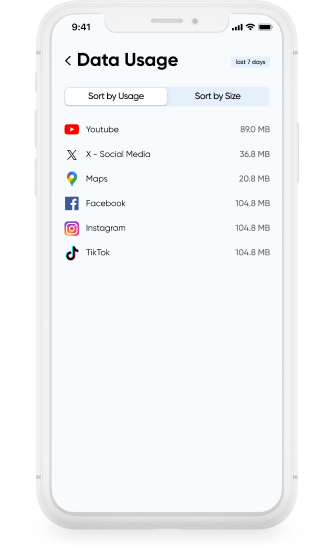
Network Information data usage screen showing app data consumption and usage statistics.

Monitor Data Usage

See how data is used across different apps on your device. This makes it easier to track usage patterns and identify unusual activity or apps that may be consuming more data than expected.

Download Smart Transfer App

View network details, check connection performance, and monitor data usage in one place. Smart Transfer App’s Network Information feature helps you stay informed about your connection.

FAQs

Q1. What does the Network Information feature do?
Smart Transfer App’s Network Information feature shows key connection details such as Wi-Fi name, network type, IP address, and encryption status, giving you a quick overview of your current connection.
Q2. How does the speed test work?
The built-in speed test measures your download and upload speeds in seconds, helping you understand how your connection is performing.
Q3. Can Smart Transfer App help diagnose slow Wi-Fi?
Yes. By showing signal strength, connection type, and network details, the feature helps you understand whether slow performance is caused by the network or the device.
Q4. How does the Data Usage section help?
The data usage monitor shows how much mobile data each app has used over the last seven days, making it easier to identify apps that consume large amounts of data.
Q5. Is my network information stored or shared?
No. All network information is viewed locally on your device. Smart Transfer App does not upload or store your connection details.
Q6. Do I need any special setup to use this feature?
No setup is required. Once you grant the necessary permissions, Smart Transfer App can display your Wi-Fi signal, speed test results, and app data usage.